
AirViewHub is a community where drone pilots share aerial videos on a world map. YouTube is full of stunning aerial footage, but much of it goes unseen – especially places that are not famous tourist spots. AirViewHub brings those hidden gems to light by pinning each video to the place it was filmed.
This guide shows you how to create an account, post a video, and find footage by place and tag.
Six steps from a YouTube link to a pin on the map.
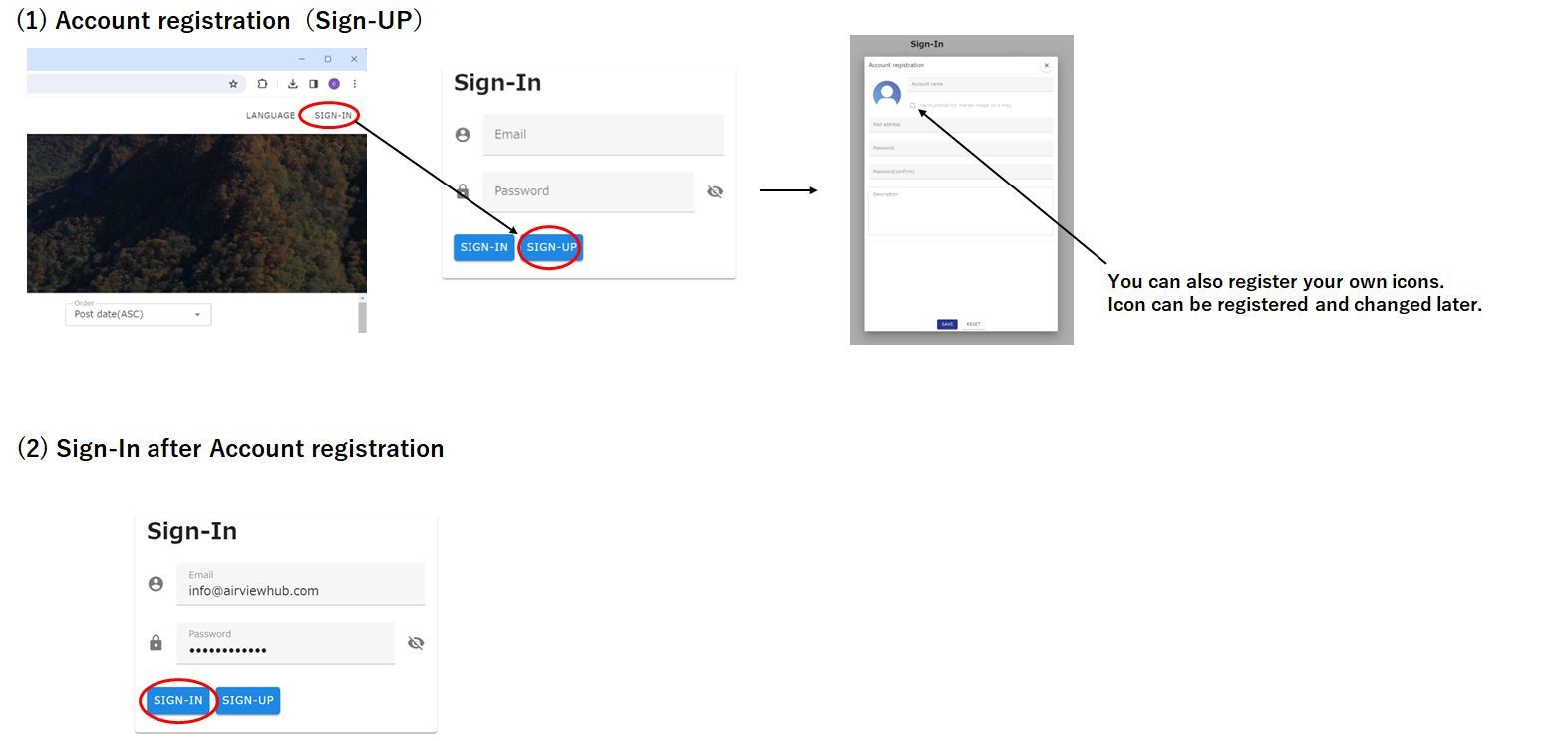
Open Sign-in and choose Sign-up. Enter an account name, e-mail address and password. You can also upload your own icon – it becomes the marker for your posts on the map, and you can change it later. Once registered, sign in with your e-mail and password.
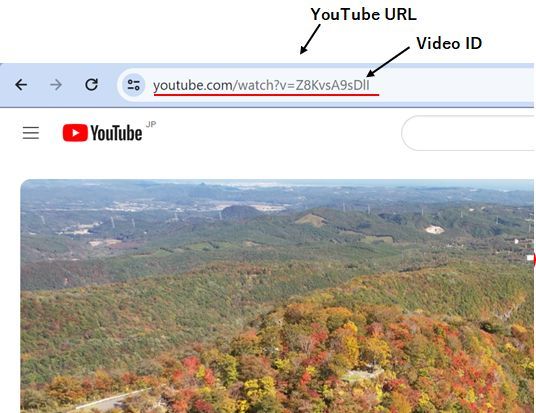
Note the URL or the video ID of the YouTube aerial video you want to share, and confirm where it was filmed.
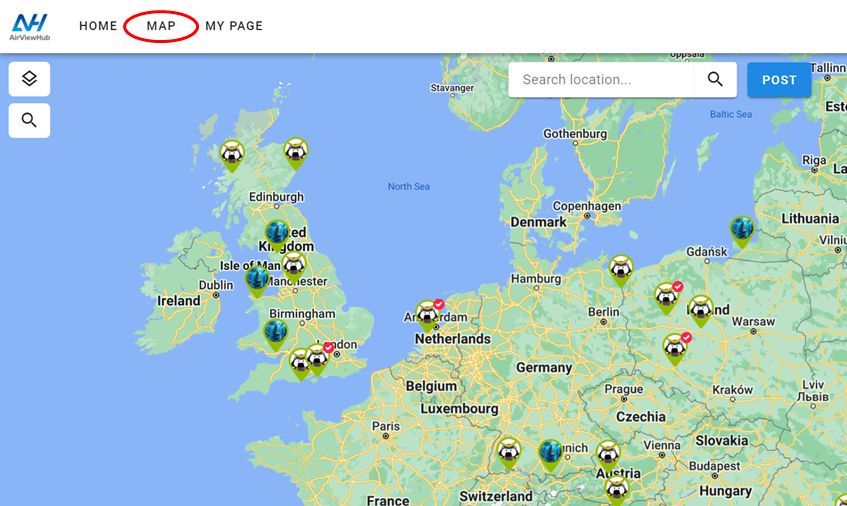
Click MAP in the top navigation.
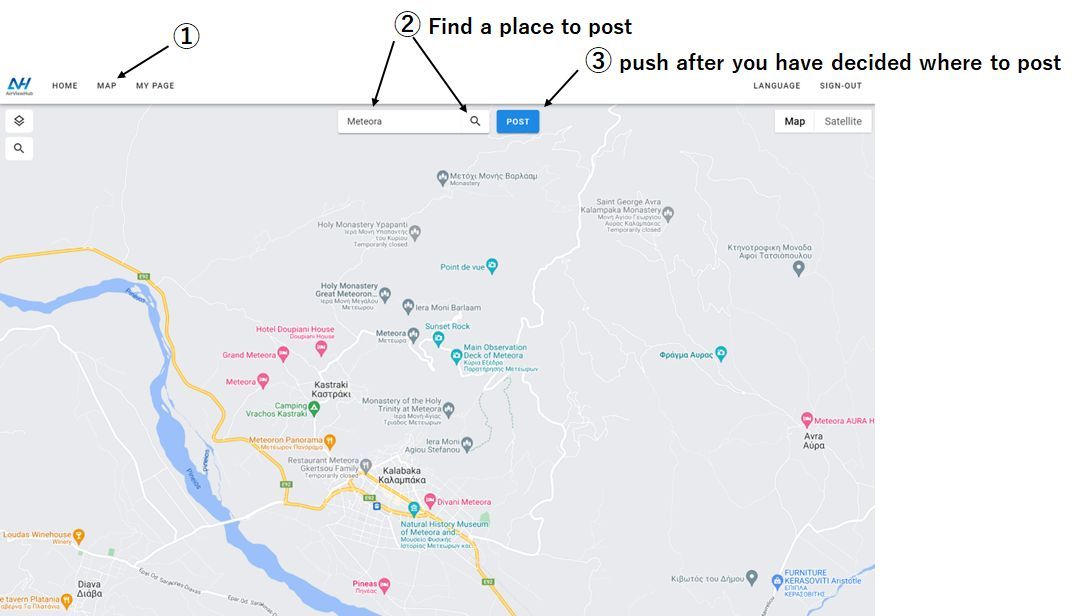
Use the location search to find the place where the video was shot, then press the POST button.
Drag the pin to fine-tune the position. Switch to satellite imagery if that makes the spot easier to recognise.
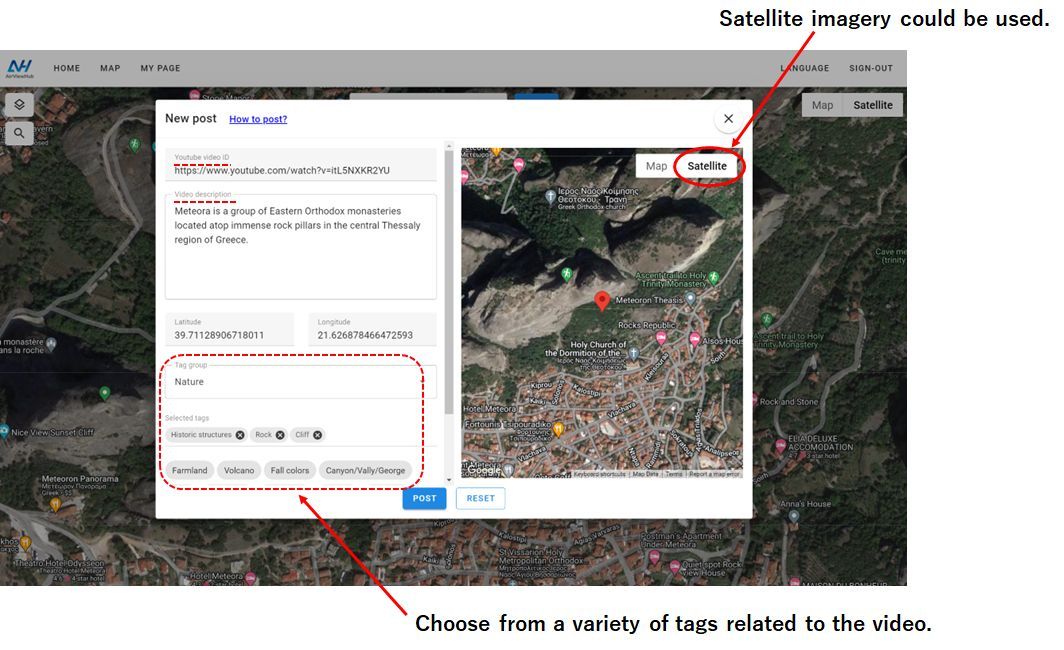
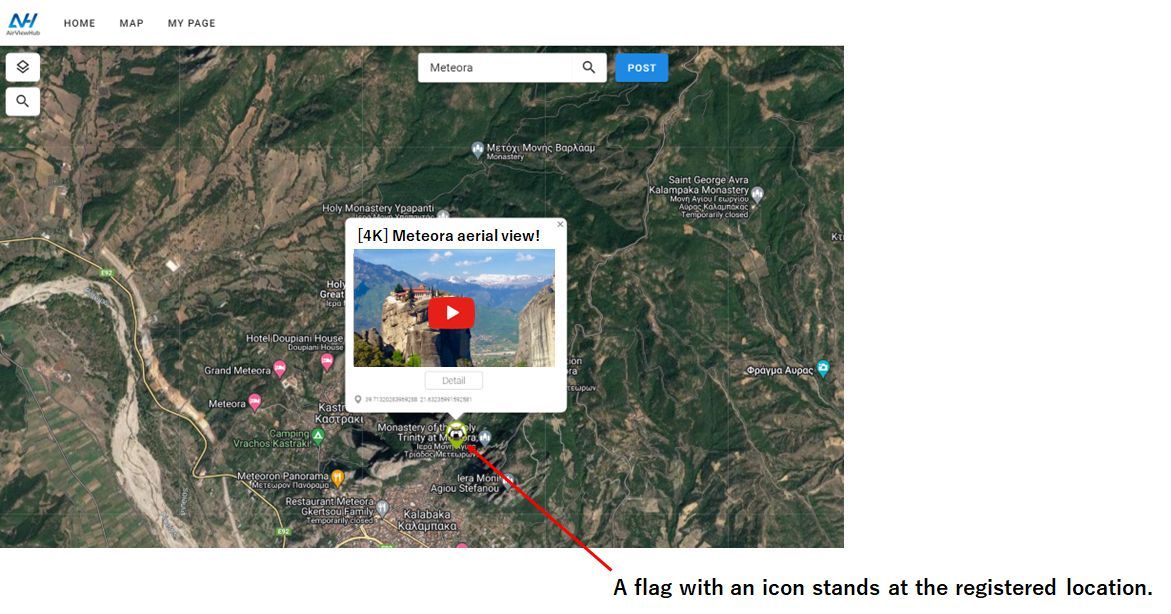
That's it. A flag with your icon now stands at the location, and anyone browsing the map can watch the video there.
Every pilot who has posted gets two pages automatically: My Map, the world map showing only the places you have flown, and My Page, your profile with all of your videos. Both work for anyone, signed in or not.
Sign in, open My Page and press the ⋮ button to the right of your profile text.
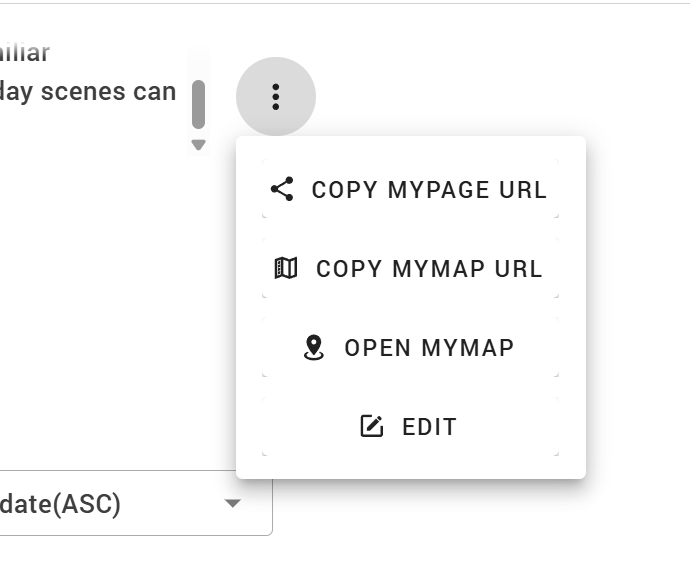
/my_page?my_page_user_name=YourName). Use it where people want to see who you are and everything you have posted./map?post_by=YourName&zoom=3). Use it where the places matter: a YouTube channel description, a social media profile, a message to a friend.The same links are also available on the map: click your avatar in the top right to open your account card.
The Track page draws your flight path over 3D terrain and replays speed and altitude. All it needs is the subtitle file your DJI drone records alongside each video.
In the DJI Fly app, open the camera settings and enable Video Subtitles (sometimes shown as Video Captions). From then on, every recording is saved together with a small .SRT text file that contains the GPS position, altitude and camera settings for each frame. Most DJI models that record GPS data support this, including the Mini, Air and Mavic series.
On the card you will find the subtitle file next to the video with the same name, for example DCIM/100MEDIA/DJI_0314.MP4 and DJI_0314.SRT. Copy the .SRT file to your computer. It is only a few megabytes, so there is no need to copy the video itself.
Open Track and drag the .SRT file onto the panel on the left (up to six flights at once). The route appears on the 3D map; press play to follow the drone, switch the terrain style in the top-left menu, and tilt or rotate the view with the mouse. If you do not have a file yet, use Load a sample flight to see how it works.
Your file is read inside your browser and is never uploaded to AirViewHub. Only the fact that a file could not be read is recorded, without any location data, so that we can improve support for other formats.
If your flight does not appear. DJI has changed the .srt format several times, and some models or firmware versions write fields we do not recognize yet. If you drop a file and nothing is drawn, please email it to kino@airviewhub.com with the drone model and app version. We use the file only to add support for that format and do not publish it. Updates are announced on the News page.
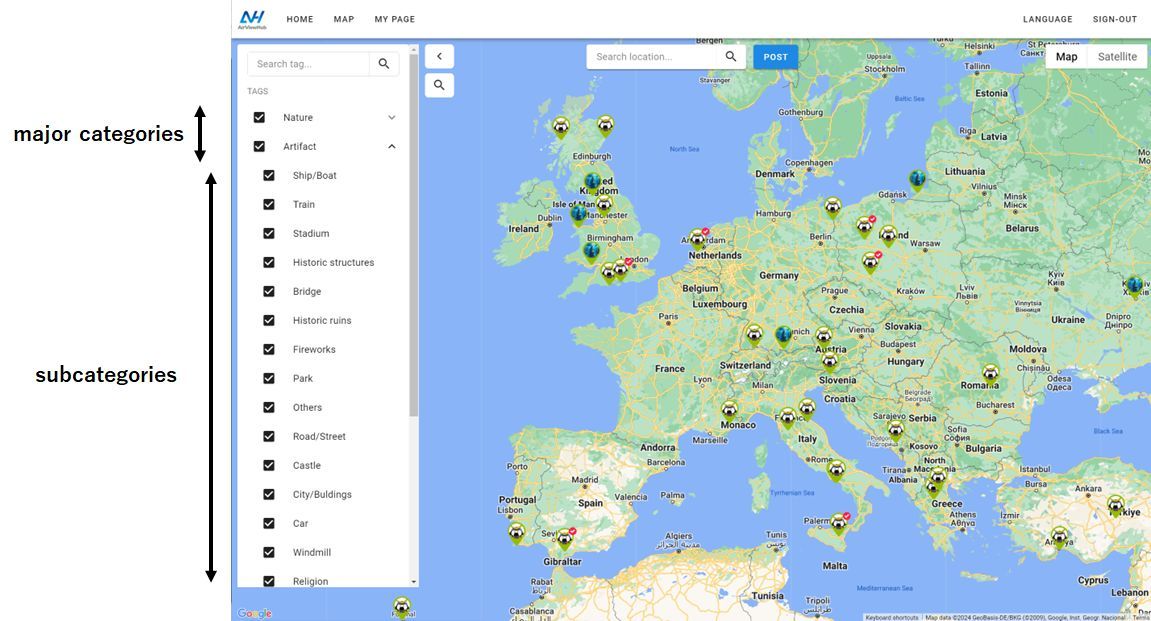
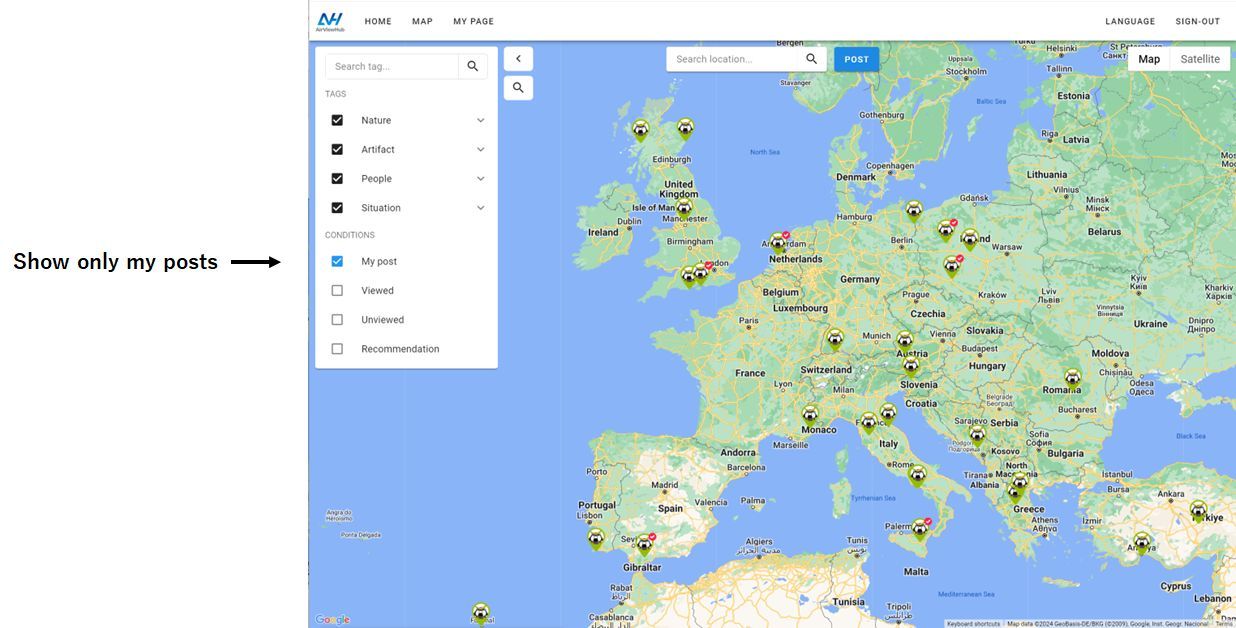
Use the panel on the left of the map to narrow down what is shown.
Tags are grouped into major categories (Nature, Artifact, People, Situation) with subcategories such as Waterfall, Castle or Bridge. Tick the ones you want to see.
Under Conditions, tick My post to display only the videos you have posted.
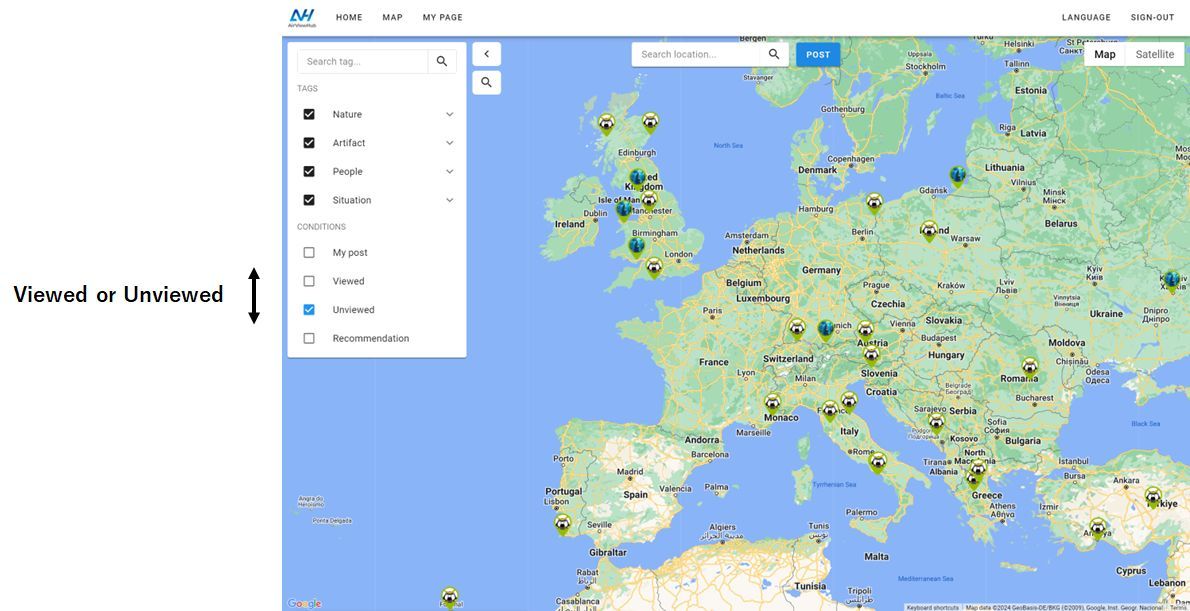
Tick Viewed or Unviewed to show only the videos you have or have not watched yet.
Please follow these points when you post.
Try the site and tell us what you think. If you run into a problem or have a suggestion, we would love to hear from you.
Your feedback helps us improve the service. Thank you for your support.